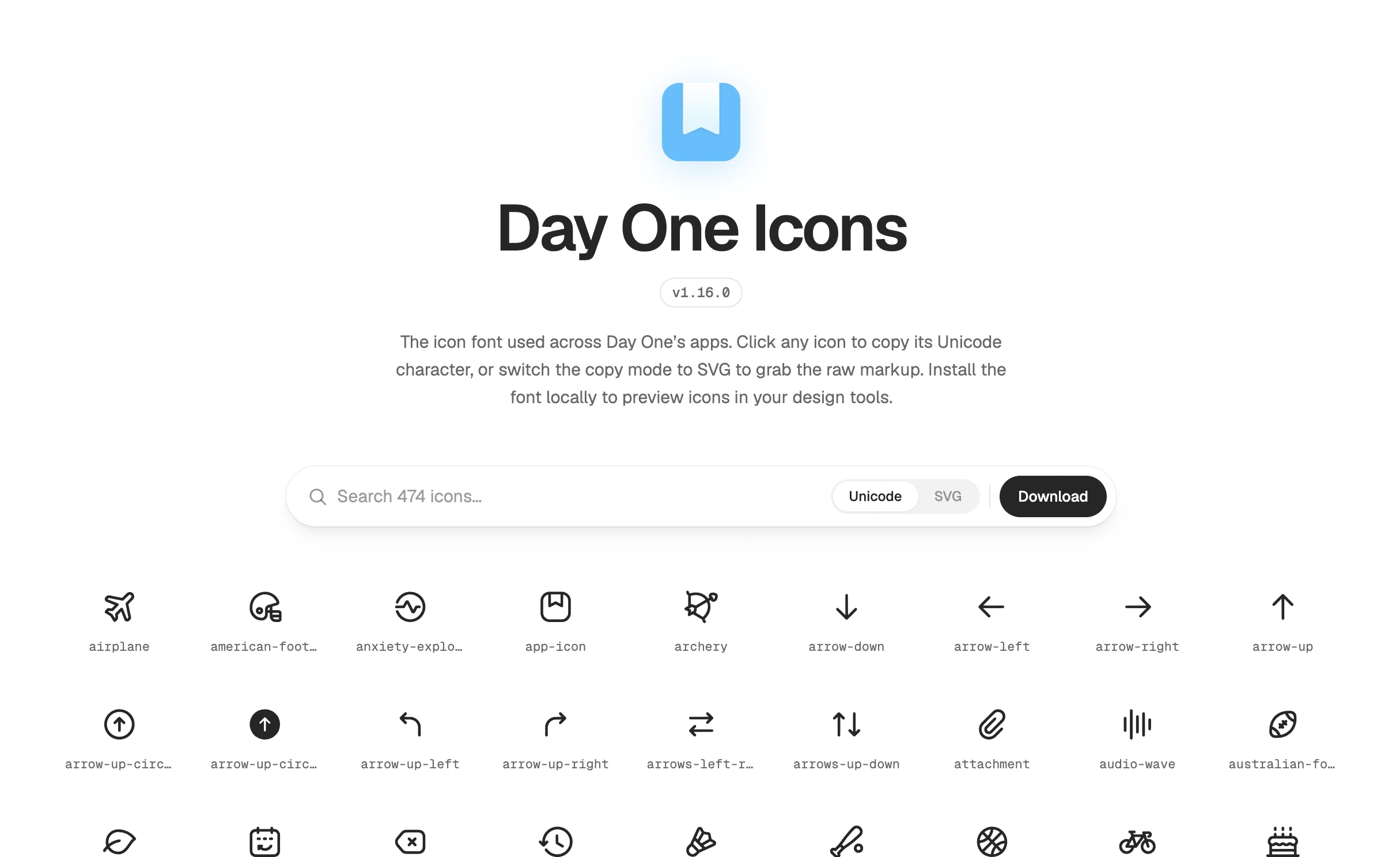
Adding an icon to Day One used to mean preparing assets for each platform by hand. I built a tool that takes a folder of 24px SVGs and generates the icon font and code for each app. Adding an icon now starts with an SVG and a pull request.
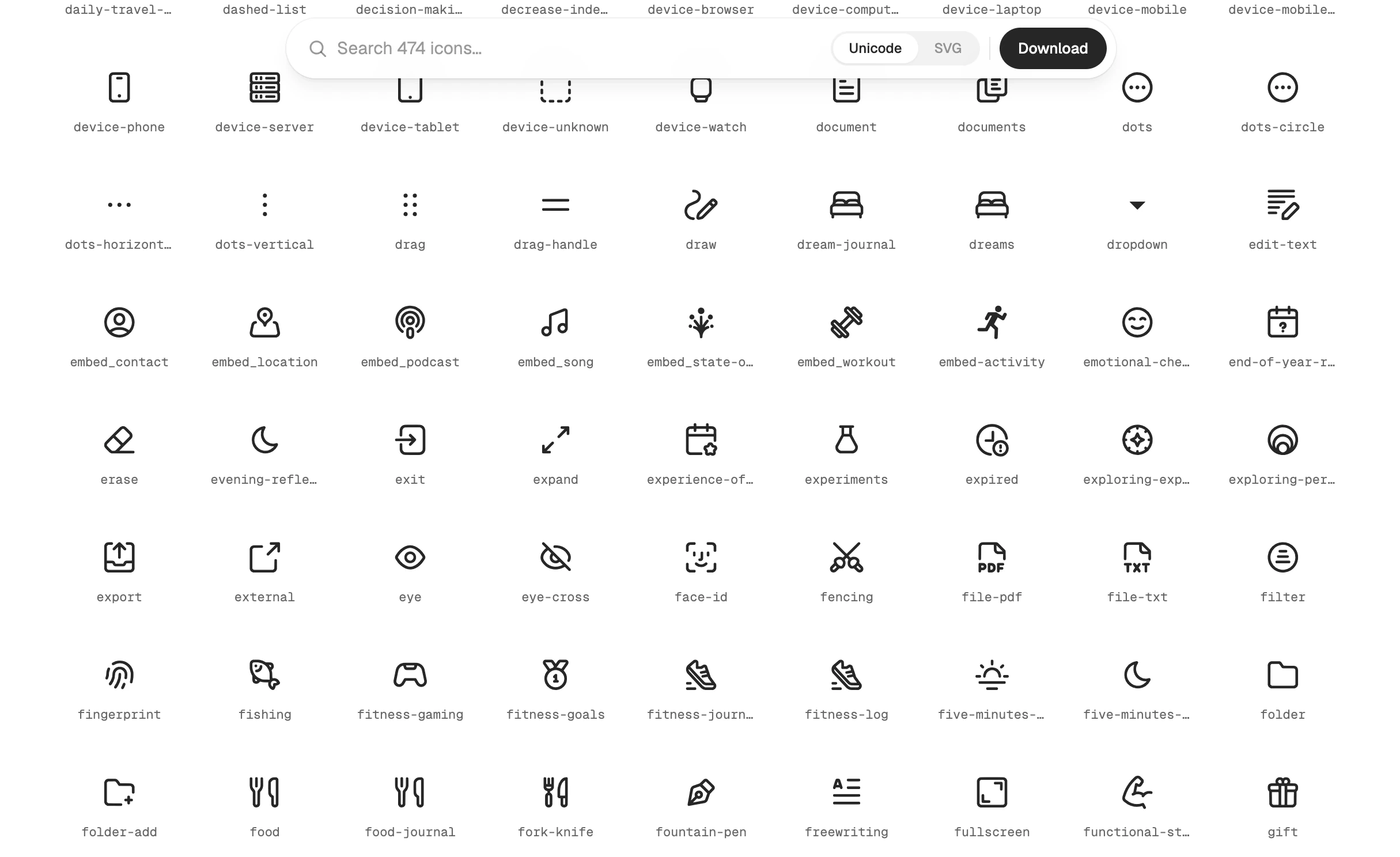
I also designed and built the reference page where designers find and copy icons. It lets them use the same library in Figma that engineers ship in the apps.
Apple’s Figma components use SF Symbols as text layers. Replacing one with a Day One icon used to mean detaching the component and losing future updates from the library.
Day One Icons is a font too, so designers can copy an icon as a Unicode character and paste it into the existing text layer without detaching the component. I added a segmented control for choosing Unicode or SVG. Clicking an icon copies the selected format.
The build flattens and optimises the SVGs, then generates the font in five formats. It also produces a Swift package, Android constants and CSS. Engineers get the font and the code to use it in one release.
With over 400 icons to browse, I made the reference page part of the build and hosted it on GitHub Pages. It checks which font version a designer has installed and prompts them to update if it’s out of date. The build also packages the downloads with a version number.
The font generator assigned new Unicode codepoints on every build. That could make an app with an older font show the wrong icon.
I made the build save the mapping in a JSON file and read it back next time. Updating an SVG keeps its existing codepoint; adding an icon assigns a new one.
{
"yoga": 61697,
"yearly-gratitude": 61698,
"write": 61699
}
For example, yoga stays at U+F101 (61697). An app using an older font still displays the yoga icon at that codepoint.